
Installation guide
Install MediDesk on Windows
Download, install and start your free 7-day trial in a few minutes.
MediDesk is a desktop app. Open this page on your Windows PC or Mac to install it.
Free 7-day trial — no payment details needed
Steps 1–4
Install the app
Windows warns about new apps. Here's exactly what to click.
 1
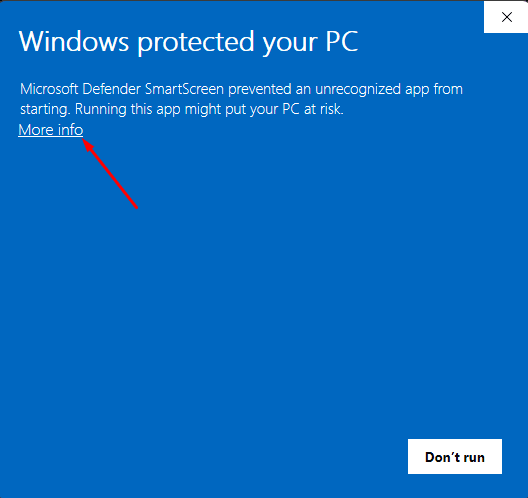
Click “More info”
When Windows says “Windows protected your PC”, click the More info link.
 2
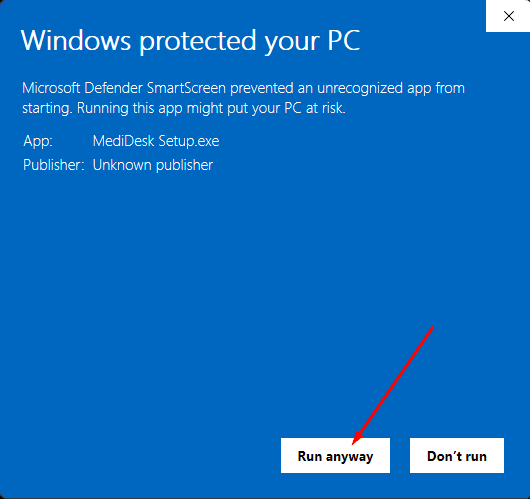
Click “Run anyway”
Check that the app is MediDesk Setup.exe, then click Run anyway.
 3
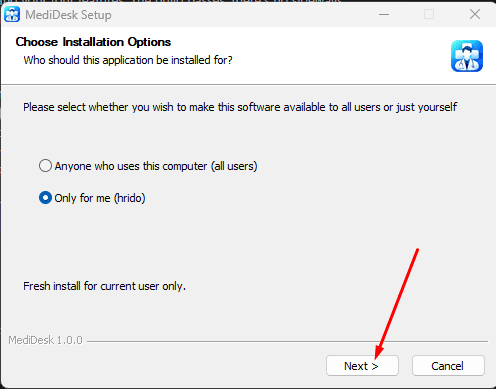
Choose “Only for me”
Keep the selected option and click Next.
 4
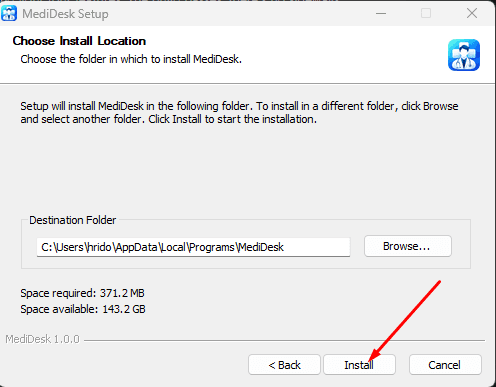
Click Install
Keep the suggested folder and click Install. MediDesk opens when it's done.
After installing
- 5
Create your clinic account
Open MediDesk and sign up with your name, email address and a password. You become the clinic's owner.
- 6
Verify your email
Enter the code we send to your email address.
- 7
Start your free trial
Your 7-day free trial starts with every feature unlocked. No payment details needed.
Windows requirements
- Windows 10 or 11, 64-bit
- 4 GB RAM (8 GB recommended)
- 500 MB free disk space
- Internet connection
Stuck? Email qualixe.info@gmail.com or WhatsApp +880 1318-552266 and we'll help you get set up.